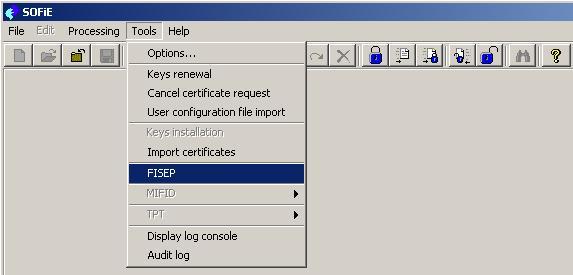
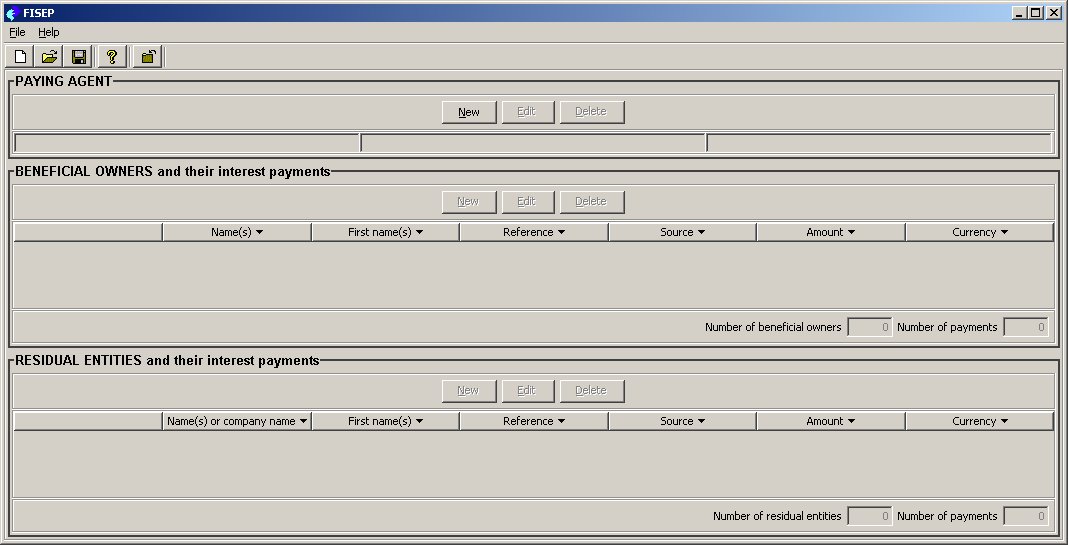
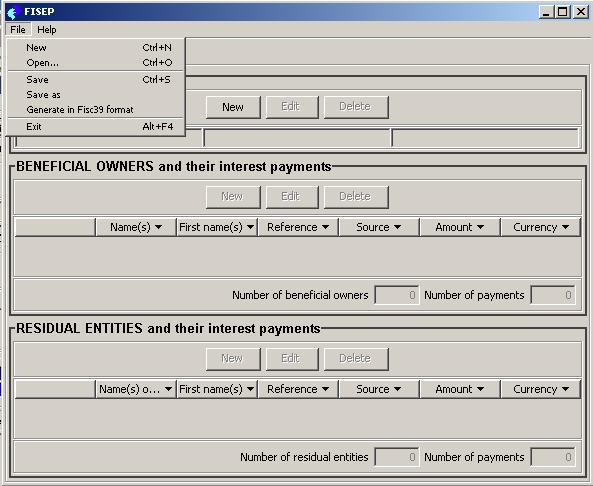
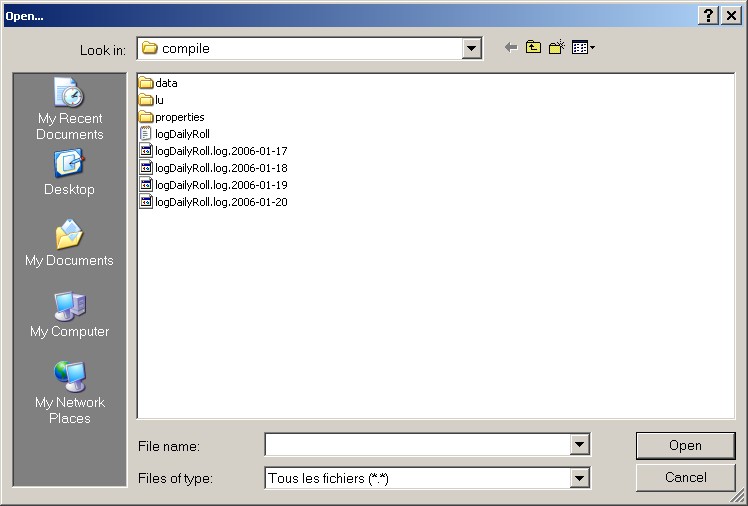
Select the desired file using the window
When opening the selected file, SOFiE verifies if the file is already in use. If this is the case, you will get the following information:
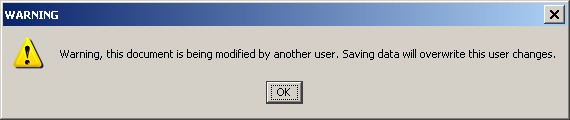
- If another user is working on the file, it is highly recommended not doing any modification and saving the file. Just close without saving.
-
This warning message may also occur if you did not correctly close SOFiE the last time you have been working on your file.
In this case you have the last version available and can continue working.
You cannot open a file that is the result of the Generate Fisc39 function.
You can access your data after closing the program only wheren you execute the save instruction to store your data on your computer
Notice:
SOFiE checks the syntax of your file when saving. If any error is detected you are informed
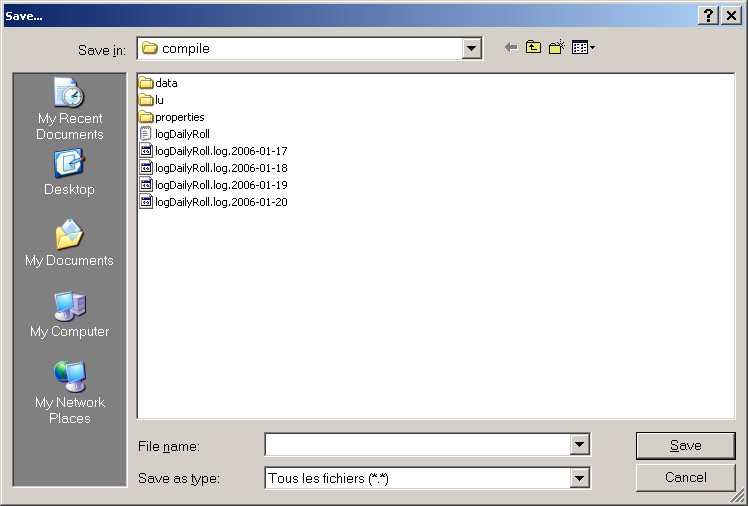
Your file is saved in an internal SOFiE format.
This file must not be sent to the Tax Administration.
Remember the name of the file and the location where you saved the file.
Notice:
SOFiE checks the syntax of your file when saving. If any error is detected you are informed
- The file is saved with the name (refer. to the FisEp Package documentation) used by SOFiE to recognize the file.
-
The file is saved in the directory "..\data" of SOFiE.
When you start SOFiE and select the menu for sending the file, SOFiE will automatically show you the file.
Simply select the file and add it to list of file to send. - SOFiE verifies the syntax of your file before creating the final format. If any error is detected you are informed.
 Create a new file
 Open an existing file
 Save a file
 Access the help
 Leave the program and close the file without saving